Minecraft offers nearly unlimited freedom, but it also comes with plenty of technical complexity. Different game versions, frequent updates, mods, system settings, and hardware differences can all cause problems.
As a result, players often run into errors—ranging from simple launch failures to crashes, severe lag, or even corrupted worlds.
Some of these errors can be especially frustrating because Minecraft doesn’t always explain what went wrong. Below is a breakdown of the most common Minecraft errors, why they happen, and what you can do to fix them.
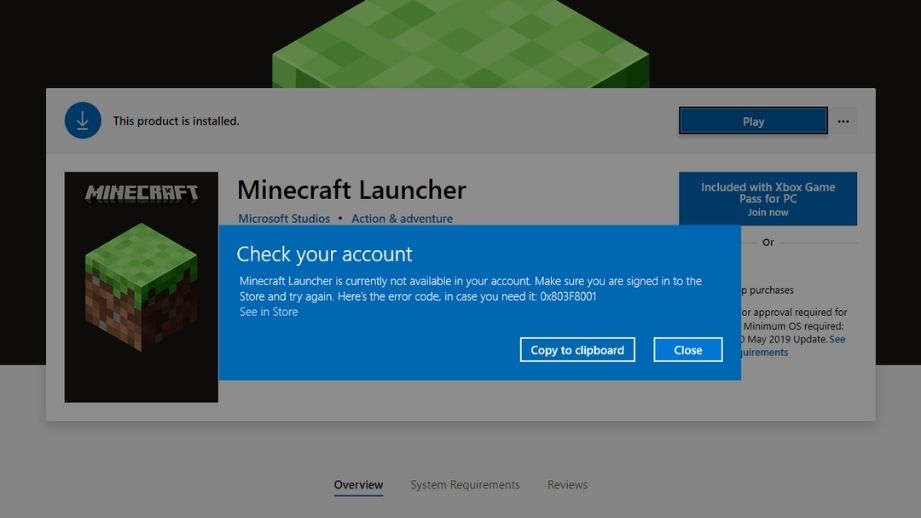
Minecraft Won’t Launch
One of the most common issues is when Minecraft simply refuses to start. The launcher opens normally, but after clicking Play, nothing happens—or the game window appears briefly and then closes.
This usually happens after:
- A Minecraft update
- A Java update
- A Windows or driver update
- Switching to a third-party launcher
In most cases, the problem is related to Java or corrupted game files. Minecraft Java Edition relies heavily on Java, and if the installed version doesn’t match the game’s requirements, the game won’t launch. Antivirus software or Windows Defender can also block game files without showing a clear warning.
Common fixes:
- Reinstall Java (64-bit)
- Delete the
.minecraftfolder (keep thesavesfolder) - Reinstall Minecraft
- Add Minecraft and Java to antivirus exceptions
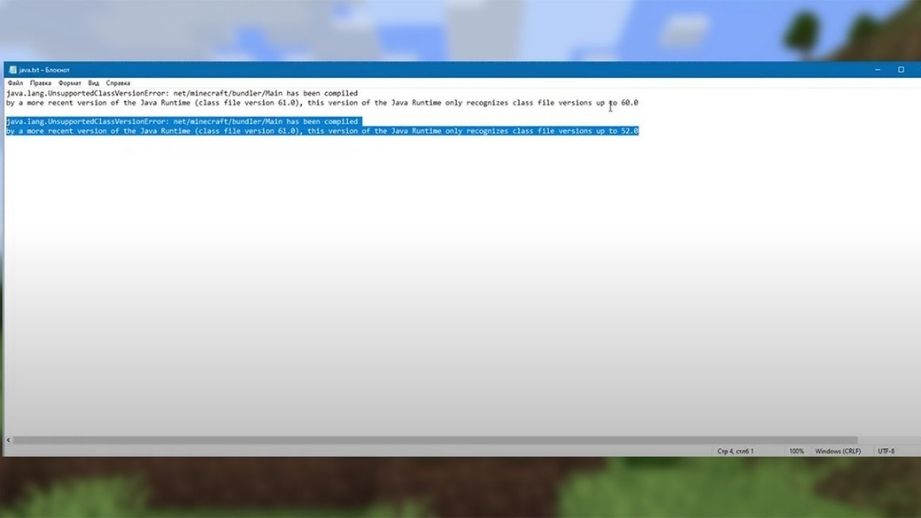
Java Runtime Environment Error
Sometimes the launcher displays an error saying that the Java Runtime Environment cannot be found or used. In this case, Minecraft doesn’t even attempt to start.
This usually happens when:
- Java was manually uninstalled
- Multiple Java versions are installed
- The launcher points to the wrong Java executable
Minecraft may automatically select an incorrect Java version, especially if Java was installed separately.
How to fix it:
- Install the correct 64-bit Java version
- In launcher settings, manually select
javaw.exe - Remove older or conflicting Java installations
Once Java is correctly installed and selected, the error usually disappears.
Minecraft Crashes on Startup (Crash Report)
Another frequent issue is a crash immediately after launch, accompanied by a Crash Report file. These reports often contain long logs and technical messages that are difficult to understand.
This problem is most common when:
- Using mods
- Running Forge or Fabric
- Mixing incompatible versions
In most cases, crashes are caused by mod conflicts or outdated mods. Even one incompatible mod can prevent the game from launching.
Recommended steps:
- Launch a clean (vanilla) version of Minecraft
- Update Forge or Fabric to match the game version
- Add mods back one by one
- Check allocated RAM
Low memory allocation can also trigger startup crashes.
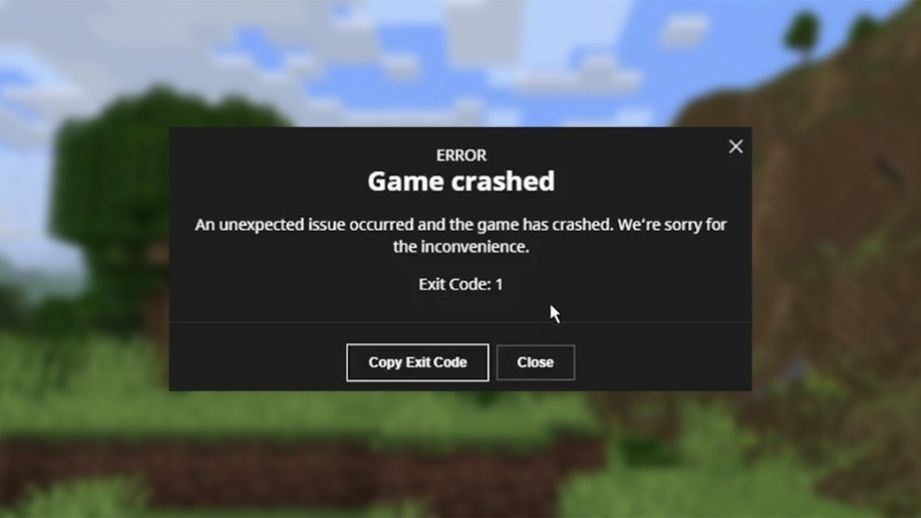
Exit Code: 1
The Exit Code: 1 error is particularly confusing because it gives no explanation. The game simply closes and shows this message.
This error can be caused by:
- Java issues
- Outdated graphics drivers
- Incorrect Forge or Fabric versions
- Corrupted configuration files
What usually fixes it:
- Update graphics card drivers
- Reinstall Java
- Reinstall or downgrade Forge/Fabric
- Launch a clean version to confirm the source
Exit Code: 1 is a general error, so narrowing down the cause is key.
Minecraft Stuck on the Loading Screen
Sometimes Minecraft launches correctly but freezes at the Mojang screen or while loading a world. The game doesn’t crash—it just never finishes loading.
This often happens due to:
- Heavy mods or shaders
- Low system resources
- Corrupted world data
Possible solutions:
- Disable shaders and resource packs
- Increase allocated RAM
- Lower render distance and graphics settings
- Try loading a different world
If only one world freezes, it’s likely corrupted.
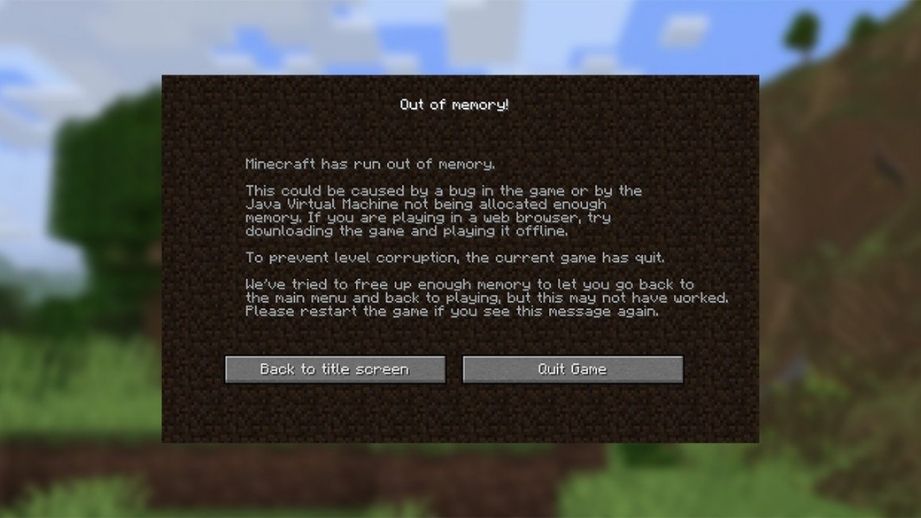
Out of Memory Error
An Out of Memory crash usually happens when:
- Playing with mods
- Generating new chunks
- Loading large worlds
Even systems with plenty of RAM can experience this error because Minecraft only uses the amount of memory assigned in the launcher.
Fix:
- Increase allocated RAM (especially when using mods)
- Use 64-bit Java
- Avoid allocating too much RAM, which can cause instability
Balanced memory allocation is crucial for stability.
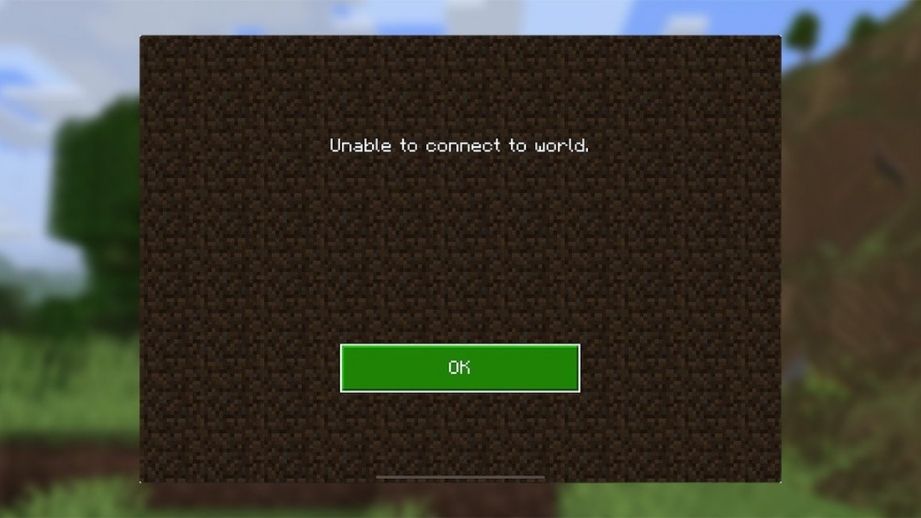
Unable to Connect to Server
When trying to join a multiplayer server, players may see errors like connection timed out or unable to connect.
Common causes include:
- Client and server version mismatch
- Server downtime
- Firewall or network restrictions
Steps to try:
- Confirm Minecraft version matches the server
- Restart the game and launcher
- Restart your router
- Allow Minecraft through firewall settings
Often, the issue is version-related rather than network-related.
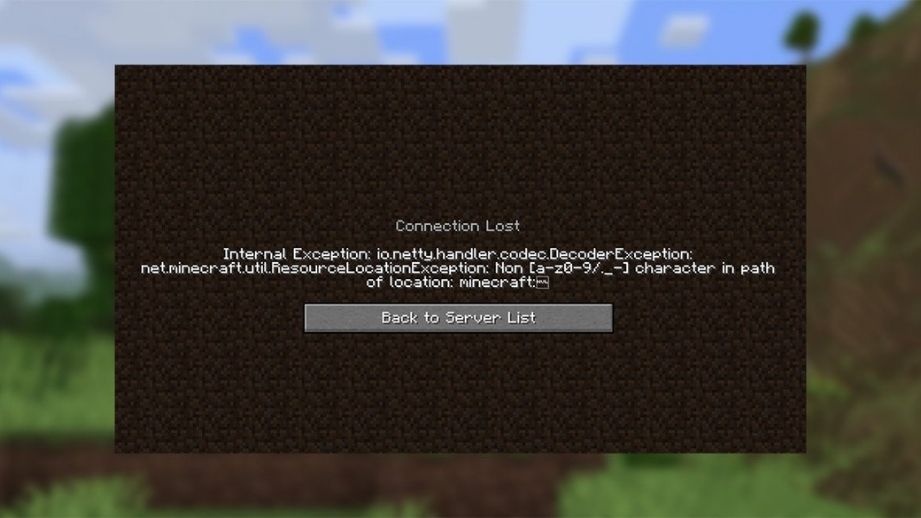
Internal Exception: io.netty
The io.netty error causes sudden disconnections from servers and can happen randomly.
This is usually caused by:
- Network instability
- Mods that affect networking
- VPNs or proxies
How to reduce it:
- Disable VPNs or proxies
- Use a wired internet connection if possible
- Test with a clean client
- Restart the system
Stable networking greatly reduces this issue.
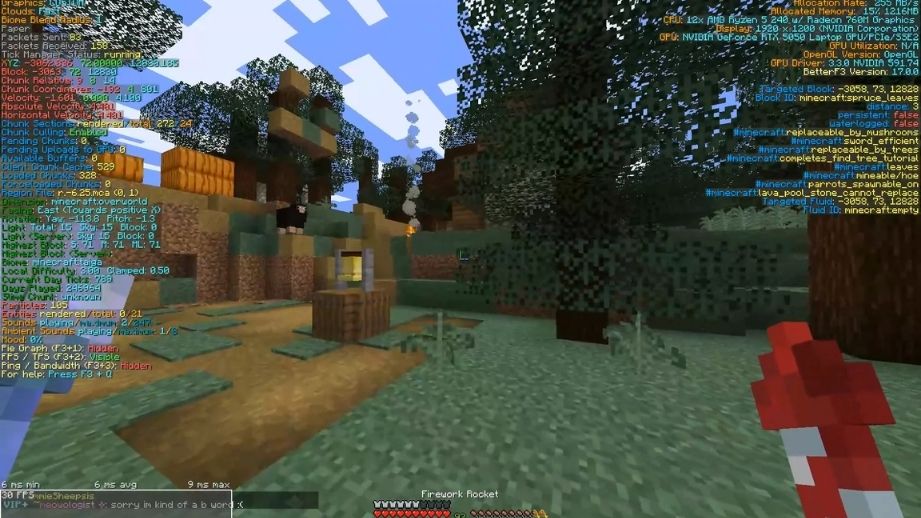
Severe Lag and Low FPS
Even powerful computers can experience lag, stuttering, or sudden FPS drops—especially in newer Minecraft versions.
This often happens because:
- Minecraft uses the wrong graphics card
- Render distance is too high
- Shadows and effects are enabled
Performance improvements:
- Lower render distance
- Disable fancy graphics and shadows
- Update GPU drivers
- Use performance mods like OptiFine, Sodium, or Lithium
Minecraft is more CPU-dependent than many games, so settings matter.
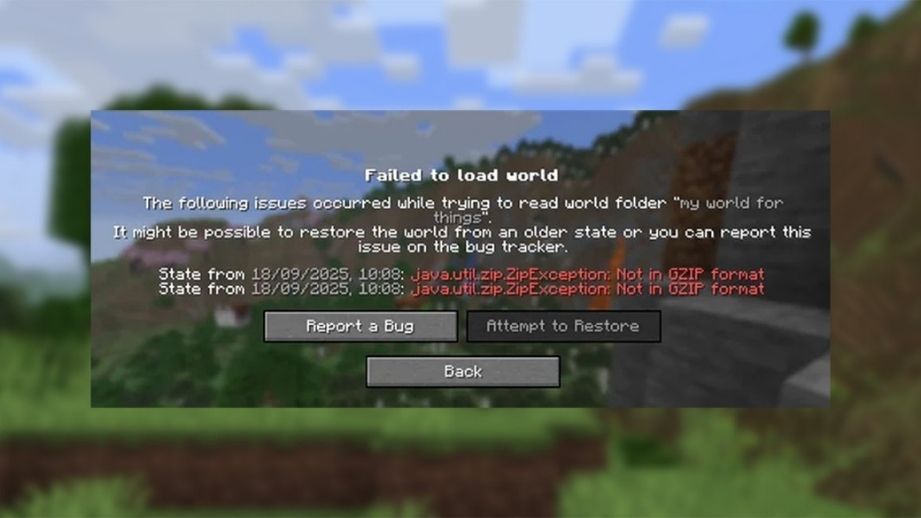
Minecraft World Corruption
World corruption is one of the most frustrating problems. The world may fail to load or crash the game entirely.
This usually occurs after:
- Sudden shutdowns
- System crashes
- Forced game closures
- Mod-related errors
Recovery options:
- Restore from backups
- Replace corrupted region files
- Use tools like NBTExplorer or Region Fixer
To prevent future issues, regular backups are essential—especially when using mods.
Final Thoughts
Most Minecraft errors are not caused by the game itself, but by Java issues, mods, system updates, or configuration problems. Understanding what causes these errors makes them far easier to fix.
Keeping your game updated, installing mods carefully, managing Java properly, and backing up worlds regularly will prevent most issues and ensure a smoother Minecraft experience.